
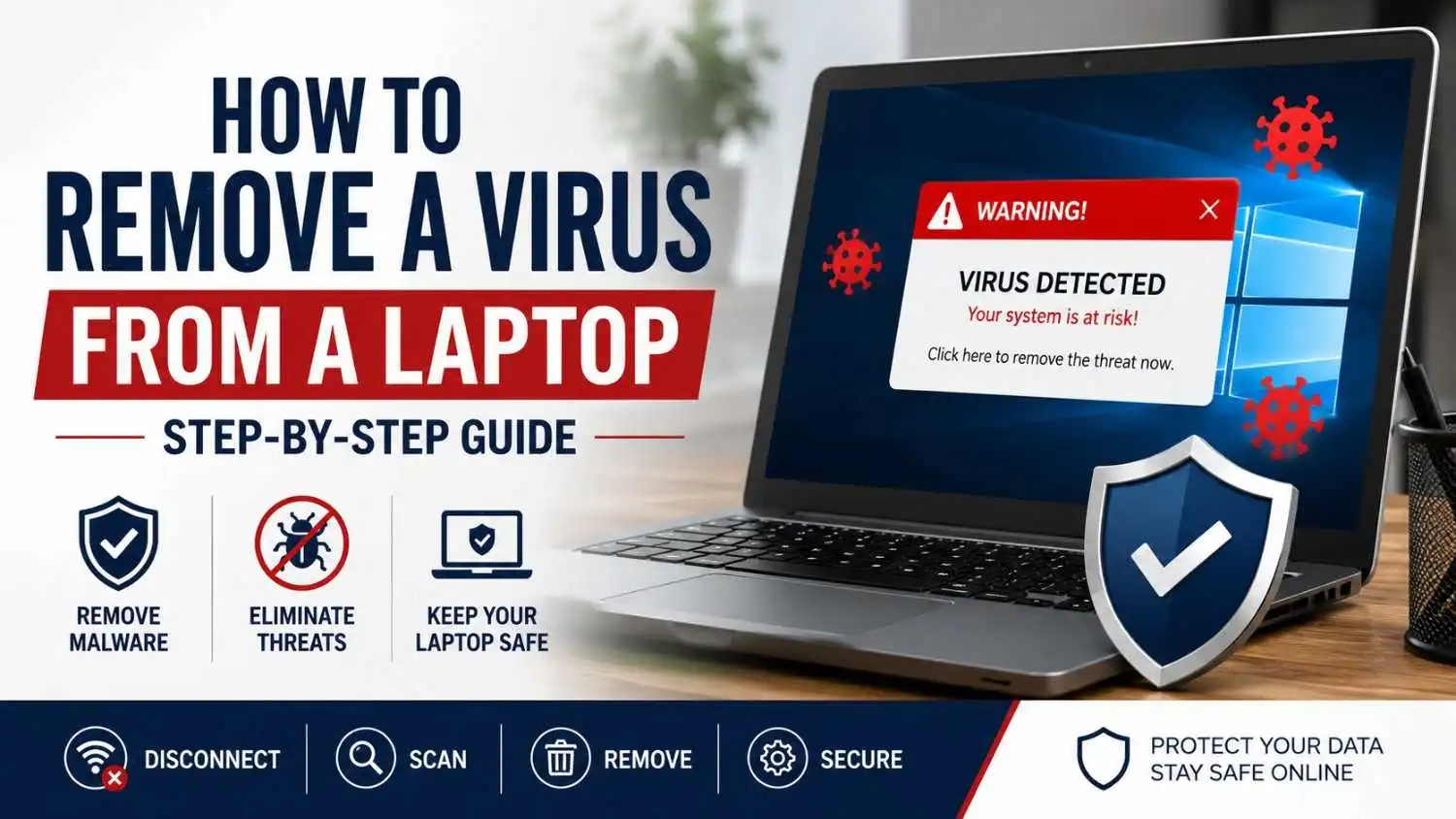
So if your laptop has suddenly become slow, it's been showing up pop-ups, redirecting you to unknown sites, or popups with fake security warnings, it's likely that there is some malware running on your laptop.
Customers frequently were led to believe that these problems are due to the desktop computer being old. However, often, the actual problem is a virus, browser hijacker or other malicious software. If you don't take care of the infection, it can do more than just slow you down on your laptop. It can steal passwords, break into e-mail accounts, gather banking details, or even render access to crucial files impossible.
There are many good things about laptop viruses, however, – many of them can be eliminated without replacing the laptop or spending a lot on anti-virus software. This guide will take you through the process of removing the virus step-by-step, show you the common pitfalls and what to do if the virus doesn't clear up, and help you get rid of viruses.
Can You Remove a Virus From a Laptop Yourself?
In many cases, yes.
Common infections such as adware, browser hijackers, and potentially unwanted programs can often be removed using built-in Windows security tools and reputable malware scanners.
However, some threats are far more serious and may require professional assistance, particularly if they involve:
- Banking trojans
- Ransomware
- Rootkits
- Persistent malware that keeps returning
- Infections that disable security software
If your laptop contains important business files, customer data, or sensitive financial information, it's worth taking extra care before attempting advanced repairs yourself.
Before You Start: 3 Important Mistakes to Avoid
Before you begin removing a virus, it's important to avoid a few common mistakes that can make the problem worse or increase the risk of data loss.
1. Don't Immediately Factory Reset Your Laptop
Many people panic and perform a factory reset as soon as they suspect a virus.
While this can remove some infections, it can also:
- Delete important files
- Remove installed software
- Create unnecessary downtime
- Make data recovery more difficult
In many cases, malware can be removed without wiping the entire system.
2. Don't Download Random Antivirus Software
Not every security tool you find online is trustworthy.
We've seen cases where fake antivirus programs claimed to remove malware but actually installed additional threats instead. Stick to well-known security tools and avoid downloading software from unfamiliar websites.
3. Don't Log Into Sensitive Accounts
Until you're confident the infection has been removed, avoid logging into:
- Online banking
- PayPal
- Business accounts
- Email accounts containing sensitive information
Some forms of malware are specifically designed to steal passwords, financial information, and personal data. It's better to clean the laptop first and then update your passwords afterwards.
Once you've taken these precautions, you can begin the actual virus removal process step by step.
Still not sure it's a virus? Check out our guide on Does My Computer Have a Virus? 10 Signs of Computer Virus to identify the most common symptoms of an infected PC.
Step 1: Disconnect Your Laptop From the Internet
One of the first things you should do is disconnect your laptop from the internet.
Many modern malware infections rely on internet access to communicate with remote servers. This connection can be used to:
- Download additional malicious files
- Send stolen information to cybercriminals
- Spread malware across a network
- Receive new instructions from attackers
Why This Matters
Think of disconnecting your laptop as isolating an infected patient.
By cutting off communication with external systems, you reduce the chances of the infection spreading or causing further damage while you investigate.
What To Do
- Turn off Wi-Fi
- Disconnect any Ethernet cable
- Disable Bluetooth if not needed
Once disconnected, keep the laptop offline until you've completed the scanning process.
Step 2: Start Windows in Safe Mode
Safe Mode is a special Windows startup mode that loads only the essential files and services required for the operating system to run.
Many viruses and malware programs rely on background processes that start automatically when Windows loads normally. Safe Mode prevents many of these processes from running, making the infection easier to identify and remove.
Why Safe Mode Helps
Imagine trying to remove a program that is actively protecting itself.
In normal mode, malware can:
- Restart itself
- Block security tools
- Hide files
- Prevent removal
In Safe Mode, many of these protections are disabled, giving you a better chance of cleaning the system successfully.
How to Enter Safe Mode in Windows 11
- Open Settings.
- Go to System > Recovery.
- Under Advanced Startup, select Restart Now.
- Choose Troubleshoot.
- Select Advanced Options.
- Click Startup Settings.
- Restart your laptop.
- Press 4 for Safe Mode or 5 for Safe Mode with Networking.
How to Enter Safe Mode in Windows 10
- Open Settings.
- Select Update & Security.
- Click Recovery.
- Under Advanced Startup, select Restart Now.
- Follow the same Startup Settings process.
Once Windows loads in Safe Mode, you're ready to begin scanning for threats.
Step 3: Run a Full Microsoft Defender Scan
In our experience, Microsoft Defender is often enough to remove basic malware, adware, and potentially unwanted programs. That’s why it’s usually the first tool we recommend when a laptop shows signs of infection.
If you're wondering how to remove a virus from a laptop without installing additional software, this is usually the best place to start.
Quick Scan vs Full Scan
Many users only run a Quick Scan, but this isn't always enough.
A Full Scan examines:
- Installed programs
- System files
- Startup locations
- Downloads folder
- Temporary files
- Hidden malware locations
Although it takes longer, a Full Scan provides a much more thorough inspection of your laptop.
How to Run a Full Scan
- Click Start.
- Search for Windows Security.
- Open Virus & Threat Protection.
- Select Scan Options.
- Choose Full Scan.
- Click Scan Now.
Depending on the size of your drive, the scan may take anywhere from 30 minutes to several hours.
If Threats Are Found
Microsoft Defender may:
- Quarantine infected files
- Remove malicious files
- Recommend additional actions
Follow any recommendations provided and restart your laptop if required.
Even if Defender reports that threats have been removed, it's still worth performing a second malware scan using a specialist tool. Many advanced infections are designed to avoid detection by a single scanner, which is exactly what we'll cover in the next step.
Step 4: Run a Second Malware Scan Using a Trusted Security Tool
Microsoft Defender is a good first layer of defence, but no antivirus program catches every threat. There are also types of malware that are specifically meant to evade detection, which is why security experts may suggest using a dedicated malware scanner for a second scan.
Think of it like getting a second opinion from another doctor. If one scanner misses something, another may identify it.
Recommended Malware Removal Tools
Some trusted options include:
- Malwarebytes
- ESET Online Scanner
- HitmanPro
These tools are widely used for detecting:
- Adware
- Browser hijackers
- Potentially unwanted programs (PUPs)
- Trojans
- Spyware
Why a Second Scan Matters
A laptop can appear clean even when hidden malware remains active.
For example:
- Browser redirects may continue
- Pop-ups may still appear
- Password-stealing malware may remain hidden
- Startup infections may survive
Running a second scan helps confirm that the infection has been fully removed.
What To Do
- Download a trusted malware scanner.
- Update the threat database.
- Run a full system scan.
- Review detected threats carefully.
- Quarantine or remove anything identified as malicious.
- Restart your laptop if prompted.
If multiple scanners continue finding infections after several attempts, the malware may be more advanced than a standard virus.
Step 5: Remove Suspicious Programs
Many laptop infections arrive disguised as legitimate software.One common example we see is users accidentally installing free PDF converters, driver updaters, or system cleaners that bundle unwanted software alongside the main download.
In fact, some users unknowingly install malware themselves after downloading:
- Free software
- Fake system optimisers
- Cracked programs
- Fake video players
- Suspicious browser tools
Removing these programs can often solve the problem immediately.
How To Check Installed Programs
- Open Settings.
- Go to Apps.
- Select Installed Apps.
- Sort by installation date.
Look for programs you don't recognise.
Warning Signs of Suspicious Software
Be cautious if a program:
- Appeared recently without your knowledge
- Has a strange or random name
- Displays excessive advertisements
- Claims to "speed up" your PC
- Pretends to be antivirus software
Don't Remove Random System Files
One common mistake is deleting programs simply because they look unfamiliar.
If you're unsure:
- Research the program first
- Check the software publisher
- Verify whether it's a Windows component
Removing legitimate system software can create new problems.
Step 6: Check Your Browser for Malware
Many modern infections target web browsers rather than Windows itself.
This is why some people continue seeing:
- Redirects
- Pop-ups
- Fake alerts
- Unwanted advertisements
even after running antivirus scans.
Browser Hijackers Explained
A browser hijacker modifies your browser settings without permission.
It may:
- Change your homepage
- Replace your search engine
- Redirect searches
- Display intrusive advertisements
These infections are extremely common and often go unnoticed.
Check Browser Extensions
Open your browser's extension manager and review everything installed.
Remove any extension that:
- You don't recognise
- Was installed automatically
- Has poor reviews
- Requests unusual permissions
Review Notification Permissions
Many users accidentally allow malicious websites to send notifications.
These notifications often appear as:
- Virus warnings
- Fake prize offers
- Security alerts
- Scam advertisements
To check:
- Open browser settings.
- Navigate to Notifications.
- Remove unknown websites.
Reset Browser Settings (If Needed)
If redirects continue:
- Reset browser settings
- Restore default search engine
- Restore default homepage
This often removes browser-based infections that traditional antivirus software misses. Resetting your browser may remove saved custom settings, so make sure you know your passwords before doing this.
Step 7: Update Windows and Installed Software
Once the infection has been removed, your next goal is preventing it from coming back.
One of the biggest reasons laptops become infected is outdated software.
Cybercriminals actively look for security vulnerabilities in:
- Windows
- Web browsers
- Adobe software
- Office applications
- Third-party programs
Why Updates Matter
Software updates don't just add features.
Many updates contain security patches designed to fix vulnerabilities that attackers exploit.
Without these updates, your laptop may remain vulnerable even after the virus has been removed.
What To Update
Prioritise:
- Windows Update
- Google Chrome
- Microsoft Edge
- Mozilla Firefox
- Microsoft Office
- Security software
Pro Tip
Enable automatic updates wherever possible.
This simple step significantly reduces the chances of future infections.
Step 8: Change Important Passwords
This is one of the most overlooked steps in virus removal.
Many users focus entirely on removing malware and forget about the information that may already have been compromised.
If a virus has been active on your laptop, there's always a possibility that passwords were exposed.
Accounts You Should Update First
Start with:
- Email accounts
- Online banking
- PayPal
- Social media accounts
- Microsoft account
- Cloud storage accounts
Important: Change Passwords After Cleaning the Laptop
Don't change passwords while the infection is still active.
If malware remains present, the new passwords may be stolen as well.
Always:
- Remove the infection first.
- Confirm the laptop is clean.
- Change passwords afterwards.
Enable Two-Factor Authentication
Where available, enable:
- Two-factor authentication (2FA)
- Authenticator apps
- Security keys
This adds an extra layer of protection even if a password becomes compromised.
Once you’ve completed these steps, your laptop should start behaving normally again.
How Long Does Virus Removal Take?
The time required to remove a virus depends on the type of infection and how long it has been active.
- Simple adware infections can often be removed within 30–60 minutes.
- Standard malware infections may take 1–2 hours to fully scan and clean.
- Severe infections involving ransomware, rootkits, or multiple threats can take several hours or even require professional assistance.
If your laptop continues showing signs of infection after multiple scans, the malware may be more advanced than a typical virus.
How to Know If the Virus Has Been Removed
After completing the steps above, your laptop should show noticeable improvements.
Signs that the infection has likely been removed include:
✓ No more pop-up advertisements
✓ Browser redirects have stopped
✓ Antivirus software works normally
✓ Laptop performance has improved
✓ No unknown programs are appearing
✓ CPU and memory usage have returned to normal
✓ Battery life has stabilised
If these issues continue, the infection may still be present and further investigation may be required.
Common Virus Removal Mistakes to Avoid
Even when people follow the correct virus removal steps, a few common mistakes can leave their laptop vulnerable or allow the infection to return.
Downloading Multiple Antivirus Programs
Many users panic and install several antivirus programs at once, hoping one of them will solve the problem.
Unfortunately, running multiple security programs simultaneously can:
- Slow down your laptop
- Create software conflicts
- Cause false detections
- Reduce overall system performance
It's usually better to use one trusted antivirus solution alongside a reputable malware scanner.
Ignoring Browser-Based Threats
A common misconception is that all infections live within Windows itself.
In reality, many modern threats operate through:
- Browser extensions
- Notification spam
- Search redirects
- Fake update prompts
If you only scan Windows and ignore your browser, some problems may continue even after malware removal.
Reusing Old Passwords
If a virus has compromised your device, reusing the same passwords can put your accounts at risk.
Once your laptop is clean:
- Change important passwords
- Use strong unique passwords
- Enable two-factor authentication where possible
Delaying Software Updates
Many infections exploit known security vulnerabilities that have already been patched.
Ignoring updates leaves your laptop exposed to threats that could have been prevented with a simple update.
What If the Virus Won't Go Away?
Most common infections can be removed using the steps in this guide. However, some threats are significantly more advanced.
If your laptop continues showing symptoms after multiple scans, the infection may fall into one of the following categories.
Rootkits
Rootkits are designed to hide deep within the operating system.
They can:
- Conceal malicious files
- Hide running processes
- Avoid detection by standard security tools
Because of their stealth capabilities, rootkits can be extremely difficult to remove without specialist tools.
Banking Trojans
Banking trojans specifically target financial information.
They may:
- Monitor online banking sessions
- Capture login credentials
- Record keystrokes
- Redirect users to fake websites
These infections should be treated seriously, especially if financial accounts have been accessed on the affected laptop.
Ransomware
Ransomware is one of the most damaging forms of malware.
Instead of simply slowing down your laptop, ransomware can:
- Encrypt files
- Lock access to data
- Demand payment for recovery
In many cases, paying the ransom does not guarantee that files will be restored.
Persistent Malware
Some infections reinstall themselves after every reboot.
This can happen when:
- Hidden components remain active
- Startup tasks have been modified
- Browser settings continue triggering reinfections
If malware repeatedly returns after removal attempts, professional diagnosis may be necessary.
Should You Factory Reset Your Laptop?
A lot of users ask if cleaning a computer by doing a factory reset is the quickest approach to get rid of a virus. Unless malware has affected the entire system, it can be removed with the assistance of anti-virus software and cleanup tools, without resetting the system.
While a factory reset will clear most infections and bring Windows back to a fresh state, it also wipes away installed applications, personal setting and may even strip away any important files if there are no back-ups.
If you have multiple scans of malware, your Windows is unstable, or performance is still poor after malware cleaning, you may want to consider a reset. But, if the infection is small, a complete scan and removal will most likely be enough and won't be as troublesome.
When Professional Virus Removal Is the Better Option
While many infections can be removed at home, there are situations where professional help is often the safest choice.
Consider professional virus removal if:
- Important business data is stored on the laptop
- The infection keeps returning
- You suspect ransomware
- Banking information may have been compromised
- Windows Security has been disabled
- Multiple scanners fail to remove the threat
Companies that provide virus removal services can detect the hidden infection, safeguard vital documents, and minimize the chances of further issues.
If you have gone thru the above steps and your laptop remains infected, do not continue to type in your password or use on-line banking. This type of malware typically needs special software and removal methods. Our Virus Removal Leeds service has the capability of identifying the infection, running the malicious software off of your computer and also assist you safeguard your personal information.
Conclusion
A virus infection doesn't always imply that the laptop is unrepairable. In most cases, malware can be cleaned up without problems by taking a systematic approach: Unplugging from the internet, conducting security scans, removing any suspicious software, cleaning browser settings and updating Windows.
The most crucial point is to move swiftly. The more the infection is active, the more the risk of loss of data, loss of passwords, financial fraud and more damage to the system.
If you've followed the steps in this guide and your laptop is still showing signs of infection, professional assistance may be the safest option. Persistent malware, ransomware, and banking trojans often require specialist tools and experience to remove completely. If you're in the Leeds area, Leeds Computer Laptop Repairs can help diagnose and remove stubborn infections while protecting your important data.
Being vigilant of any security threats, keeping software updated, and reacting promptly to any indicators of infection will greatly decrease the likelihood of recurring infections and ensure a safe and efficient use of your laptop.
Frequently Asked Questions
Can I Remove a Virus From a Laptop Without Losing My Files?
In many cases, yes.
Most malware infections can be removed without deleting personal files. However, severe infections and ransomware attacks may require additional recovery work.
Can Windows Defender Remove a Virus?
Microsoft Defender is capable of detecting and removing many common threats.
However, for the best results, it's often recommended to run a secondary malware scan using a dedicated malware removal tool.
How Long Does Virus Removal Take?
Simple infections can often be removed within a few hours.
More complex malware, ransomware investigations, or data recovery work may take longer depending on the severity of the infection.
Can a Virus Steal My Passwords?
Yes.
Some forms of malware are specifically designed to collect login credentials, banking information, and personal data.
If you suspect an infection, change important passwords after your laptop has been cleaned.
Will a Factory Reset Remove a Virus?
A factory reset removes most common infections, but it should generally be considered a last resort after other removal methods have been attempted.
Can a Virus Damage Laptop Hardware?
Viruses typically target software rather than physical hardware.
However, malware can cause overheating, excessive resource usage, and system instability that may contribute to long-term performance issues.